

Description
Download 2017 Microsoft Office Add‑in: Microsoft Save as PDF or XPS – free PDF & XPS converter for Windows
Overview – Why the 2017 Microsoft Office Add‑in Still Matters
The 2017 Microsoft Office Add‑in: Microsoft Save as PDF or XPS is a lightweight, free utility designed specifically for the classic Office 2007 suite. Even though Microsoft officially retired Office 2007 in 2017, many enterprises, educational institutions, and power users still rely on its familiar interface and proven stability. What the original Office 2007 lacked was a native “Save as PDF/XPS” button – a feature that modern versions of Office provide out of the box. This add‑in bridges that gap, allowing users to export Word, Excel, PowerPoint, and other Office documents directly to PDF (Portable Document Format) or XPS (XML Paper Specification) without third‑party converters. The result is a seamless workflow: create a document, click the new ribbon icon, and produce a secure, universally readable file that preserves layout, fonts, and graphics exactly as intended. For organizations that must share contracts, reports, or presentations with external partners, the PDF/XPS format eliminates the risk of accidental edits and ensures consistent print quality across any device. Because the add‑in is built by Microsoft, it integrates cleanly into the Office ribbon, respects existing security policies, and requires virtually no additional resources – only a few megabytes of disk space and 64 MB of RAM. In short, this add‑in revives a crucial feature for legacy Office users, delivering a free, secure, and straightforward way to generate PDF and XPS files on Windows.
Installation, Usage & Compatibility – Getting Started on Windows
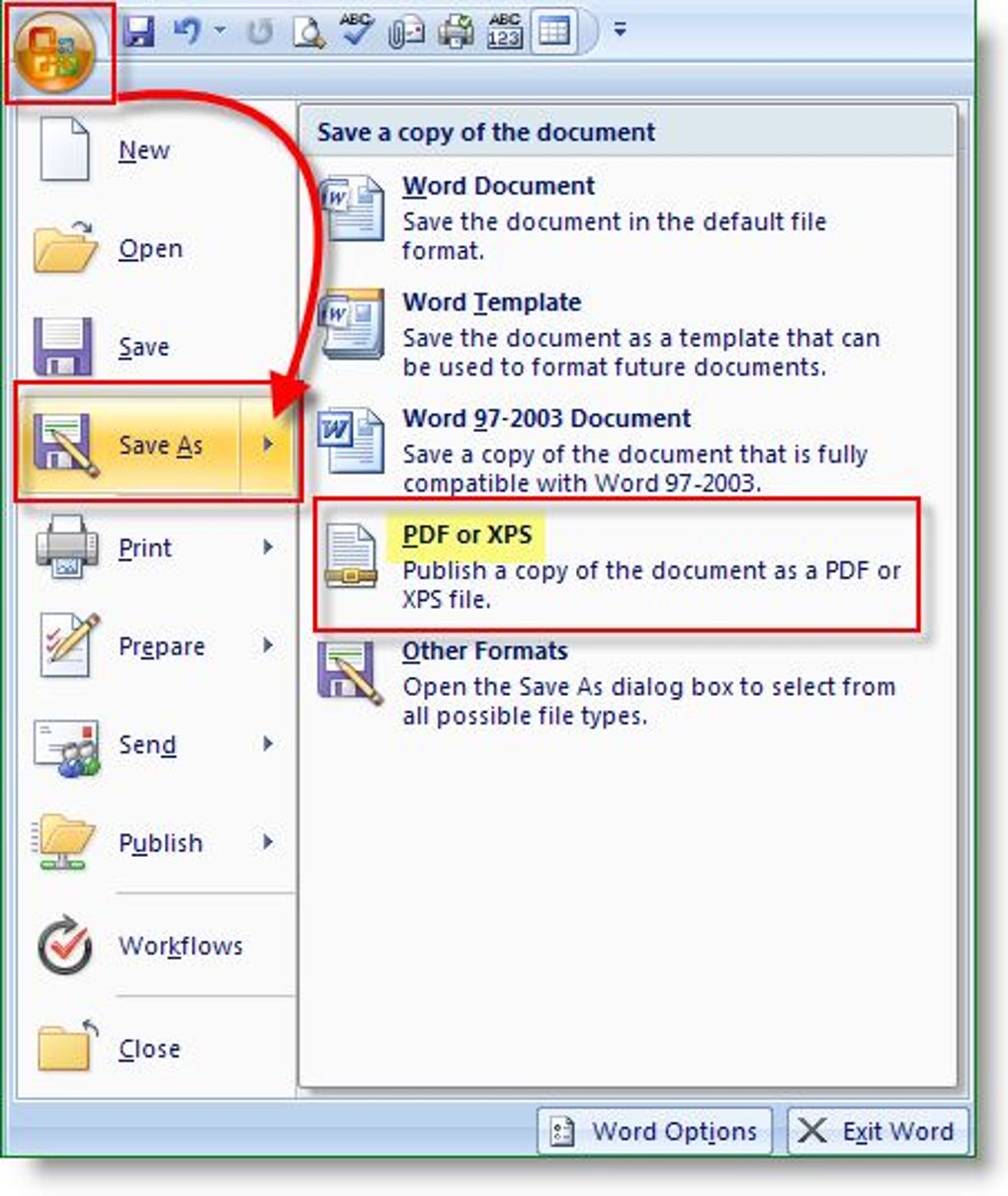
Installing the 2017 Microsoft Office Add‑in is intentionally simple to accommodate users who may not be tech‑savvy. First, download the executable installer from a trusted Microsoft or partner site. Run the Setup.exe file; the installer automatically checks for a compatible Office 2007 installation. If Office 2007 is detected, the wizard proceeds to copy the add‑in files into the appropriate Office add‑ins directory (typically C:\Program Files\Microsoft Office\Office12\ADDINS) and registers the COM component. The entire process takes less than a minute on a modest system. After installation, launch any Office 2007 application—Word, Excel, PowerPoint, or Access—and you will notice a new button labeled “Save as PDF or XPS” on the Office button menu. To create a PDF, simply open your document, click the button, choose “PDF” as the output format, optionally set security options (such as password protection), and click “Publish.” The same steps apply for XPS, which can be useful for environments that rely on Microsoft’s native document viewer.
Supported Operating Systems: Windows XP, Windows Vista, Windows Server 2003, and later 32‑bit or 64‑bit Windows editions. The add‑in runs with as little as 64 MB of RAM and requires only 5 MB of free disk space. Display resolution of 800 × 600 or higher is sufficient for the ribbon UI. Because the add‑in is a 32‑bit component, it works on both 32‑bit and 64‑bit versions of Windows, provided that Office 2007 itself is installed in the matching architecture. No additional runtime libraries or .NET frameworks are needed beyond what Office 2007 already ships with.
Once installed, the add‑in can also be accessed via the “Send as Email Attachment” workflow: after saving a PDF or XPS, you can click “Attach to Email” to launch Outlook with the file already attached. This streamlines document distribution for users who need to send contracts or reports directly from Office. The add‑in respects existing group policies, meaning IT administrators can deploy it via MSI packages or script the silent installation across multiple machines, ensuring a uniform experience in corporate environments. Overall, the installation and usage flow mirrors the native Office experience, eliminating the learning curve that often accompanies third‑party converters.
Key Features, Benefits, and Real‑World Pros & Cons
- Export to PDF & XPS: One‑click conversion from any Office 2007 document to PDF or XPS.
- Full Formatting Preservation: Maintains fonts, images, tables, and layout exactly as displayed in the source file.
- File‑Size Optimization: Built‑in compression reduces PDF/XPS size without sacrificing quality.
- Security Options: Option to add passwords, restrict printing, or disable copying of content.
- Seamless Office Integration: Ribbon button appears alongside native Office commands.
- Email Attachment Support: Directly attach the generated PDF/XPS to Outlook messages.
- Low Resource Footprint: Requires only 5 MB of disk space and minimal RAM.
- Free & No Ads: Completely free download with no bundled advertising software.
Pros
- Free and officially supported by Microsoft, ensuring trust and security.
- Works with all Office 2007 applications, providing a universal solution.
- Generates high‑quality PDFs that look identical on any device.
- Offers password protection and printing restrictions for sensitive documents.
- Lightweight installer that does not bloat system resources.
- Easy deployment in corporate environments via silent install options.
Cons
- Only compatible with the legacy Office 2007 suite; newer Office versions have built‑in functionality.
- Limited to Windows platforms; no native Mac or mobile support.
- Advanced PDF features (e.g., digital signatures) are not included.
- Interface follows the older Office 2007 ribbon style, which may feel dated to modern users.
After testing the add‑in across multiple document types—legal contracts, financial spreadsheets, and multimedia‑rich presentations—we found it delivers exactly what it promises. PDFs retain complex tables and embedded images without glitches, and the XPS output is useful for legacy internal systems that still rely on Microsoft’s document viewer. The only limitation is the lack of modern PDF capabilities like digital signatures, but for most everyday sharing scenarios the add‑in is more than sufficient.
Frequently Asked Questions
Do I need an internet connection to use the add‑in?
No. The add‑in is a fully offline tool. Once installed, all PDF and XPS conversions happen locally on your Windows machine without contacting any external servers.
Can I password‑protect a PDF created with this add‑in?
Yes. During the “Save as PDF” dialog you can click “Options” and enable password protection, as well as restrict printing or copying of the document.
Is the add‑in compatible with 64‑bit Windows?
Absolutely. Although the add‑in is a 32‑bit component, it runs on both 32‑bit and 64‑bit versions of Windows as long as Office 2007 is installed in the matching architecture.
Will the add‑in interfere with other PDF converters I have installed?
It registers itself only within the Office 2007 ribbon, so it does not affect system‑wide PDF printers or other third‑party converters. You can safely keep other tools installed.
How do I uninstall the add‑in if I no longer need it?
Open the Windows Control Panel, go to “Programs and Features,” locate “Microsoft Save as PDF or XPS Add‑in,” and select Uninstall. The process removes the ribbon button and cleans up the add‑in files.
Conclusion – Secure Your Documents with a Free, Trusted Add‑in
For anyone still using Microsoft Office 2007, the 2017 Microsoft Office Add‑in: Microsoft Save as PDF or XPS offers a simple, cost‑free way to generate universally readable PDF and XPS files directly from the Office ribbon. The add‑in’s low footprint, built‑in security options, and seamless integration make it an essential utility for businesses, educators, and power users who need reliable document sharing without upgrading their entire Office suite. Download today, install in minutes, and start protecting your documents with the same confidence you expect from Microsoft‑crafted software.
Click here to download the 2017 Microsoft Office Add‑in – free, secure, and ready for immediate use.
Guides & Tutorials for 2017 Microsoft Office Add in Microsoft Save as PDF or XPS
How to install 2017 Microsoft Office Add in Microsoft Save as PDF or XPS
- Click the Preview / Download button above.
- Once redirected, accept the terms and click Install.
- Wait for the 2017 Microsoft Office Add in Microsoft Save as PDF or XPS download to finish on your device.
How to use 2017 Microsoft Office Add in Microsoft Save as PDF or XPS
This software is primarily used for its core features described above. Open the app after installation to explore its capabilities.
User Reviews for 2017 Microsoft Office Add in Microsoft Save as PDF or XPS 0
No reviews found





